Shopify overhauled Sidekick in 2026, and adoption followed. Weekly active shops using Sidekick grew 385% YoY, with merchants using it for everything from product descriptions to custom apps to full workflow automation. Nearly half of all Shopify Flows generated in Q1 2026 were built through Sidekick.
But in reality not every prompt sent to Sidekick ends up being a working flow, many never trigger or if they do they end up doing something else. The reason? Ambiguous prompting.
This guide collects tested Flow prompts from agencies and practitioners who use Sidekick daily, alongside a framework for writing your own. Every prompt is copy-paste ready and Sidekick-tested.
If you want to skip straight to the examples, jump to the prompts. Otherwise, keep reading to understand the backbone of a good prompt so your Flows actually do what you want them to do and bring the expected results.
But now starting with the basics…
What is Shopify Flow and how is it used
Shopify Flow is Shopify's built-in automation tool. It lets merchants create workflows that run automatically based on events in their store - an order comes in, inventory drops, a customer hits a spending threshold - without writing any code.
Every Flow follows the same logic: a trigger starts it, conditions filter when it should run, and actions define what happens. Before Sidekick, merchants built these workflows manually by clicking through the Flow editor. Now, you can describe what you want to Sidekick and it builds the Flow for you.
Flow is free on all Shopify plans and it connects to third-party apps through connectors - so the same automation engine that tags customers and manages inventory can also trigger emails through Klaviyo or award loyalty points through BeyondCart.
How to structure a Shopify Flow prompt that works
Shopify fine-tuned a dedicated AI agent (based on Qwen3-32B) specifically for Flow generation, and it's 2.2x faster and 68% cheaper than using frontier models. That agent responds best when prompts are specific.
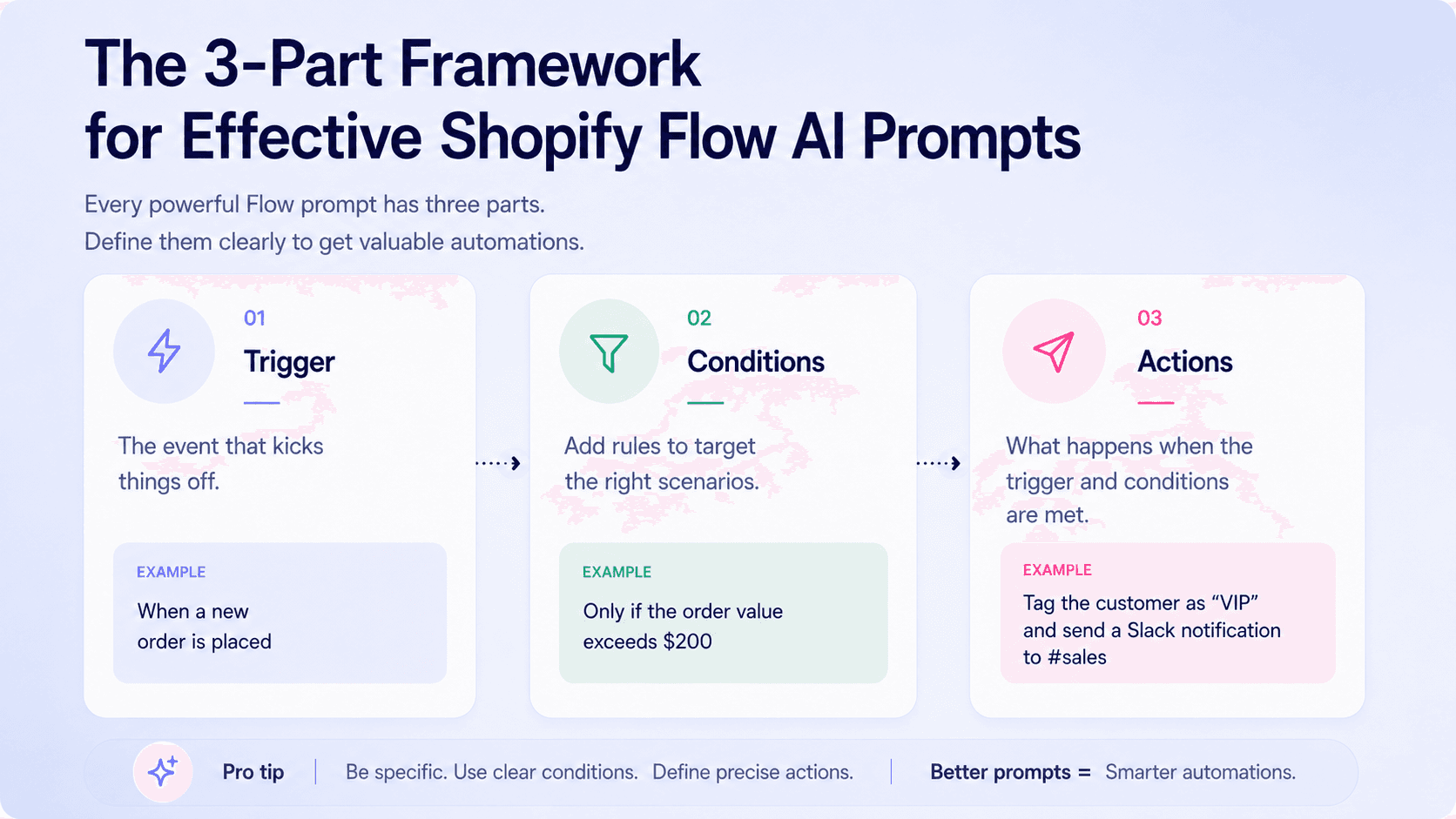
Every effective Flow prompt has three parts:
Trigger - what starts the workflow (e.g., "When a new order is placed")
Conditions - when it should or shouldn't run (e.g., "only if the order value exceeds $200")
Actions - what happens (e.g., "tag the customer as 'VIP' and send a Slack notification to #sales")
Miss any of these and Sidekick fills in the blanks with assumptions. Sometimes those assumptions are wrong.
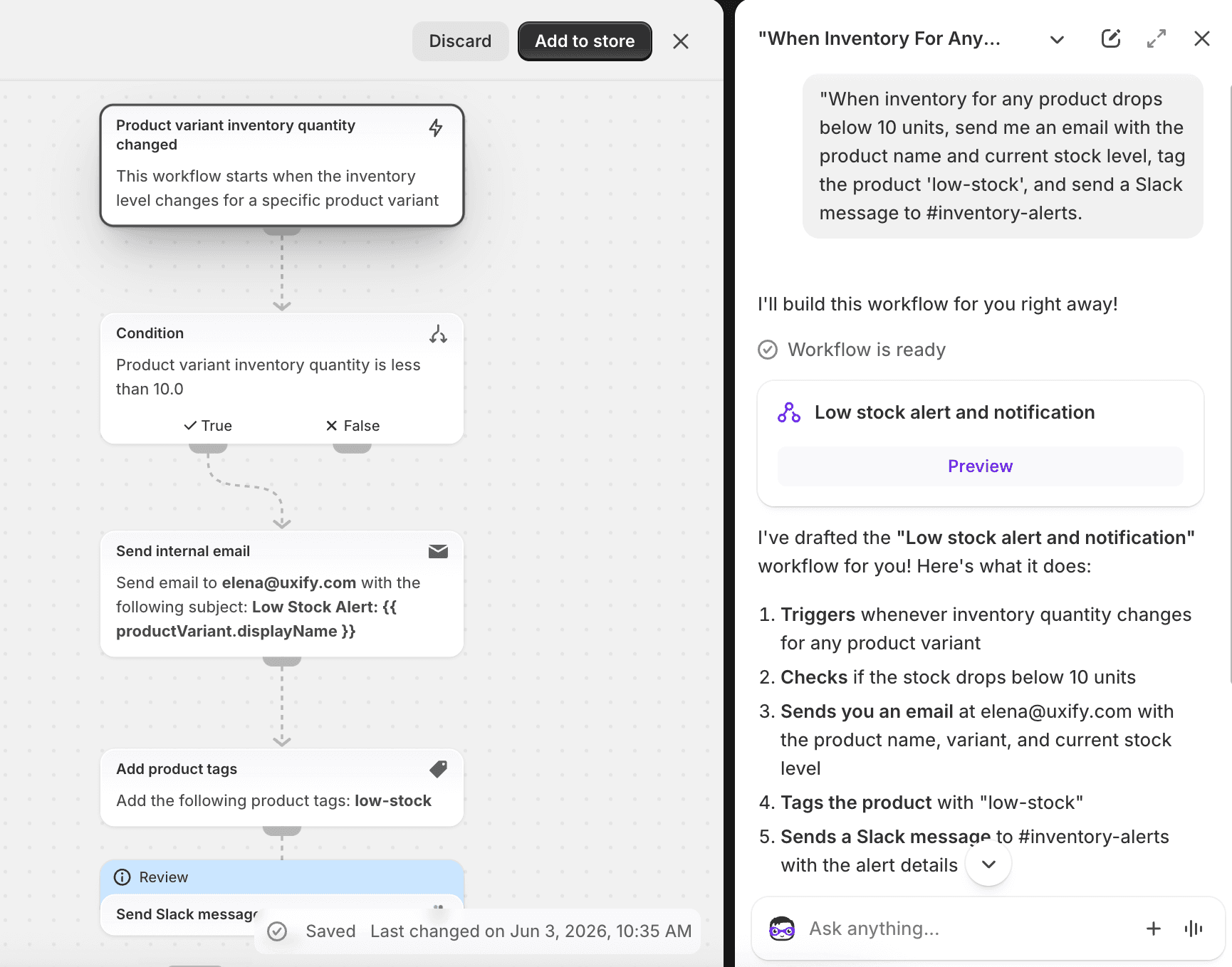
Weak prompt: "Automate my inventory alerts."
Strong prompt: "When inventory for any product drops below 10 units, send me an email with the product name and current stock level, tag the product 'low-stock', and send a Slack message to #inventory-alerts."
The strong prompt specifies the trigger (inventory below 10), the conditions (any product), and three distinct actions. Sidekick doesn't have to guess.
The best way to think about Flow prompts is like those value statements we used to write at university, based on Geoffrey Moore’s “For, Who, Our, Is, That” positioning statement framework.
The prompt quality ladder
Level | Example | What happens |
Weak | "Help me with inventory" | Sidekick asks clarifying questions. Nothing gets built. |
Moderate | "Alert me when products are low stock" | A basic flow, but Sidekick picks the threshold and notification method. |
Strong | "When inventory drops below 10, email me and tag the product 'low-stock'" | A working flow with the right trigger, condition, and actions. |
Expert | "When inventory drops below 10 for products tagged 'best-seller', email the purchasing team, tag the product 'reorder-needed', and create a draft purchase order in our ERP connector" |
What you need to know about using Sidekick to generate Flows
Launching Flows without end-to-end testing can go wrong fast, especially when they trigger customer-facing actions like emails, discounts, or order changes. That's why Shopify placed guardrails specifically for AI-generated Flows:
Flow generation works best on desktop. Mobile Sidekick supports chat and voice, but the Flow builder experience is desktop-optimized.
Every workflow Sidekick creates starts as inactive. You have to manually turn it on after reviewing - this is a built-in safety net.
Sidekick auto-tags its workflows with "sidekick" so you can filter AI-generated Flows when organizing your library.
Flow can connect to external apps like Klaviyo, Google Sheets, ShipStation, and others through connector apps. These need to be installed and connected first - once they are, Sidekick can use their triggers, conditions, and actions when building Flows for you.
Sidekick may skip business-specific logic in complex workflows. Always review the generated flow and use dry-run mode to validate against real store data before going live.
Does Flow replace your external automation tools?
If you're evaluating whether Flow can replace the external automation tools your team already relies on, the short answer is: for most use cases, yes. Anton Ekström at Iggy Agency used to build most of these automations using n8n, Make, Zapier, or as custom apps:
"Today, Flow is usually our first recommendation because it's native to Shopify, accessible for merchants, and much easier for teams to maintain over time. Merchants quickly realize that many workflows can be created or adjusted without needing to involve a developer or Shopify partner every time."
The exception? When the automation involves complex ERP logic or business-critical integrations that Flow doesn't fully support. In those cases, Iggy Agency builds custom apps instead. Think of it as an 80/20 split: Flow handles the majority of what agencies previously offloaded to third-party tools. The remaining 20% still needs custom solutions.
And even that 20% is shrinking. If you're already experienced with Flows, you don't always have to jump straight to a custom app - you can hand Sidekick the API documentation and let it build the integration itself. You'll find a ready-to-use example in the third-party API prompts below.
Enhance a Shopify Flow template with AI
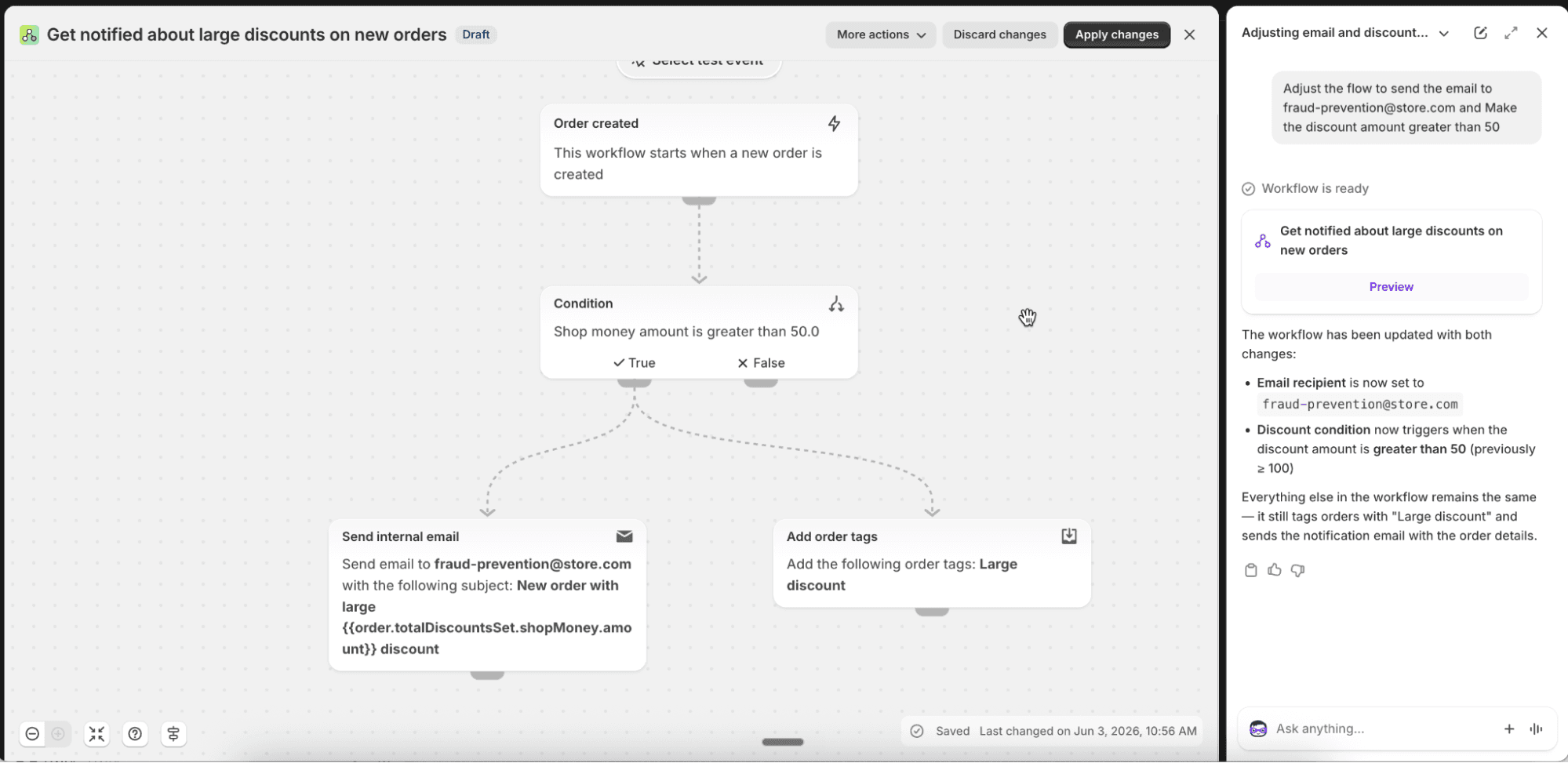
If you're not sure where to start or what you need exactly, Shopify's Flow template library is a good starting point. Pick a template that's close to what you want, then ask Sidekick to customize it for your store.
This approach works well for two reasons. First, you don't need to build the logic from scratch - the template already has a working trigger-condition-action structure that handles the basics. Second, reviewing Sidekick's edits is much easier when you've already seen what the original flow looks like. You can spot mistakes faster because you have a reference point.
Example prompt: "Take the 'Tag VIP customers' Flow template and adjust it so VIP status triggers at $1,000 lifetime spend instead of $500, add a 'VIP-Gold' tag at $3,000, and send a Slack notification to #customer-success when someone reaches Gold."
The meta-prompting approach
If you're a more experienced merchant or already launched a few Flows successfully, you may want to try a different approach. Simply explain to Sidekick what you want to do and let it suggest how to build the Flow. To make it even easier, you can use tools like Wispr Flow to dictate your thoughts directly to Sidekick. Daniel Gruber, the co-founder of the Shopify agency Haunschmid & Gruber puts it simply:
"I don't use classic prompts anymore. I ask Sidekick itself how it would build a Flow accomplishing what I need. If the answer makes sense, I give it the go-ahead."
This flips the dynamic. Sidekick proposes the trigger-condition-action structure, and you approve or adjust. It works because Sidekick knows its own capabilities better than you do. By letting it draft the approach first, you avoid over-specifying things it handles automatically, and you catch gaps before anything gets created.
When Sidekick hallucinates (and it does - it sometimes references tags, fields, or data sources that don't exist in your store), Daniel's fix is to explicitly remind it what sources to use:
"I ask: how can we accomplish X using Y, in the most efficient way? Specifying both the goal and the data sources keeps it grounded. When applicable, I define the source and target source directly."
📣 PRO TIP: Even with a solid plan from Sidekick, always run the workflow in test mode before activating. Iterate until the flow behaves exactly as expected.
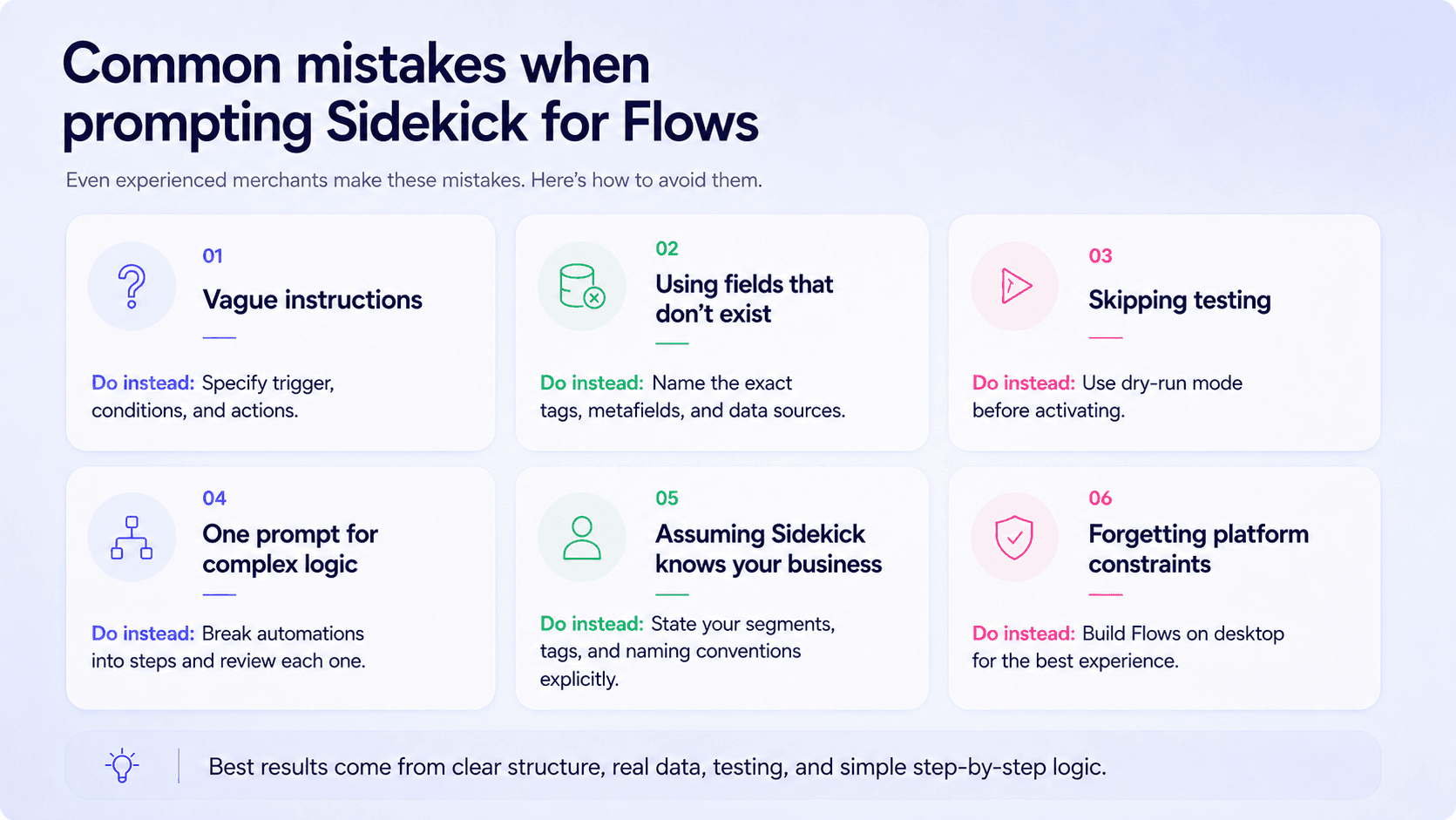
Common mistakes when prompting Sidekick for Flows
The framework above will get you 80% of the way. The remaining 20% is knowing what not to do because Sidekick won't tell you when a prompt is bad, it'll just build something that looks right and breaks on day two.
Vague instructions. "Automate my inventory" gives Sidekick nothing to work with. It'll ask clarifying questions or produce a generic flow that doesn't match your operations. Always specify the trigger, conditions, and actions.
Using tags or fields that don't exist. Sidekick sometimes hallucinates - it references tags, metafields, or data sources that aren't in your store. Daniel Gruber's fix: tell it exactly which data sources to use. Frame prompts as "accomplish X using Y" rather than leaving it open-ended.
Not testing before activating. Every Sidekick-generated workflow starts inactive for a reason. Use dry-run mode with real store data before turning it on. One merchant reported Sidekick ignored explicit rules across 80+ product updates - character limits busted, language reverted, instructions skipped. Spot-check the output, especially on bulk operations.
Over-relying on one prompt for complex logic. Sidekick may skip business-specific rules in complex multi-condition Flows. Break intricate automations into steps, review each one, and chain them rather than cramming everything into a single prompt.
Expecting Sidekick to know your business context. It doesn't know your tag taxonomy, customer segment names, or internal naming conventions. State them explicitly every time.
Forgetting platform constraints. Flow generation works best on desktop. Mobile Sidekick supports chat and voice, but the Flow builder experience is desktop-optimized.
Ready-to-use Flow prompts by category
Writing your own prompts from scratch works when you know exactly what you need. But when you're exploring what's possible, or looking for patterns you haven't considered, starting from proven examples is faster.
Below are 30+ prompts across inventory, CRO, loyalty, customer communication, order management, and marketing. Each one solves a specific operational problem and follows the trigger-condition-action structure from the framework above. Some come directly from the agencies and practitioners who contributed to this guide, with context on why they built them that way.
Pick the category closest to your current bottleneck, paste the prompt into Sidekick, and adjust the thresholds to match your store.
Before you start: a few things to keep in mind when using these prompts. For any Flow that sends customer communication - email, SMS, or push notifications - the connector app needs to be installed and the email or message templates need to already exist in the platform you're sending from (Klaviyo, Omnisend, Postscript, etc.). Flow triggers the send, but it doesn't create the template for you. Also, these prompts assume certain tags, segments, and Slack channels that may not exist in your store. Always swap them with your own.
Inventory and fulfillment Shopify Flow AI prompts
Inventory-related Flows are the most commonly built automation among Shopify merchants and the most straightforward to prompt. These handle the repetitive monitoring that's easy to forget and expensive to miss.
Low stock alert with Slack notification:
"When inventory for any product drops below 15 units, send a Slack message to #inventory-alerts with the product title, variant name, and current stock count. Also tag the product 'low-stock'."
Auto-hide sold-out products, auto-show when restocked:
"When a product's inventory changes, I want to automatically manage its visibility on the Online Store. If all variants hit 0, unpublish it. If it's already unpublished and inventory comes back above 0, publish it again. Keep it as a single linear flow with two conditions, no parallel branches and don't trigger any action if nothing actually needs to change."
Fulfillment delay warning:
"When an order has been unfulfilled for more than 3 days, send an email to the fulfillment team with the order number, customer name, and line items. Tag the order 'fulfillment-delayed'."
Slow mover detection:
"Run on a weekly schedule. Get all products. For each product, check if it has recorded zero sales in the last 60 days and has more than 0 inventory. If both conditions are true, tag the product 'slow-mover' and send a Slack message to #merchandising with the product title, current inventory count, the collection it belongs to, and a direct link to the product admin page."
📣PRO TIP: Once you spot your slow movers, bundle them with your top sellers in the same collection. Even with a small discount on the bundle, you move stuck inventory while lifting overall revenue - instead of marking it down and hoping for the best. Products that don't sell alone often move fine when bundled with a bestseller.
Reorder trigger based on sales velocity:
"When a product tagged 'fast-mover' drops below 20 units in inventory, send an email to purchasing@[yourdomain].com with the product name, current stock, and average daily sales for the last 30 days."
Adjust thresholds to match your store's velocity - 20 units might be right for fast-movers, but slow-selling items might need a lower trigger. The key is making sure every Flow specifies what "low" means for that product, not leaving Sidekick to guess.
Backorder detection and tagging:
"Create a Flow for backordered orders what triggers when order is created. Wait for 20 sec and then check whether the order is still relevant for backorder handling:
Order display fulfillment status is not fulfilled
or fulfillment status is not cancelled
or fulfillment orders status is not closed
If true, check whether the order matches any backorder criteria:
Variant inventory quantity is below 0
or product tag is 'custom-product'
or line item current quantity is less than or equal to 0
or product tag contains 'always_backordered'
or a custom attribute value contains 'auf Lieferrückstand'
If any backorder criterion is true:
Add the order tag 'backordered'
Send an internal email notification with the order number, customer name, customer email address, product titles, and current fulfillment status"
Jan at Shopwise built this for merchants selling custom or made-to-order products, or products sourced from suppliers where stock availability varies. The flow identifies affected orders early, and the 'backordered' tag triggers downstream processes - notifications, fulfillment routing, customer comms. Swap the tags and the custom attribute value (here in German, "auf Lieferrückstand") for your own naming.
Customer tagging and segmentation Shopify Flow AI prompts
Customer tagging is where most agencies start with Flow because the payoff is immediate - clean segments power everything downstream, from email flows to ad targeting to loyalty tiers.
High-value customer tagging based on lifetime spend:
"When a customer's total spent exceeds $500, tag them 'high-value'. If their total spent exceeds $2,000, replace the tag with 'high-value-top-tier' and add them to the customer segment 'Top Customers'."
Acquisition source tagging from UTM parameters:
"When an order is created, check the UTM source. If it contains 'facebook', tag the customer 'acquired-facebook'. If it contains 'google', tag them 'acquired-google'. If it contains 'tiktok', tag them 'acquired-tiktok'."
💡 Pro tip: Use acquisition tags to adjust your ad spend. Customers you've already acquired through Facebook don't need to see your awareness ads - move them to repeat purchase campaigns or email instead.
New vs. returning customer auto-tagging:
"When an order is created, check the customer's order count. If it's their first order, tag them 'first-time-buyer'. If it's their second order, tag them 'returning'. If it's their fourth order or more, tag them 'loyal'."
Geographic segmentation:
"When an order is created from a shipping address in the EU, tag the customer 'market-EU'. When the shipping address is in the US, tag them 'market-US'. When the shipping address is in AU, tag them 'market-AU'."
Whatever Flow you build, be as specific as possible: name the exact market, name the tags you use and use the same parameters when setting up your segments after.
Marketing and promotions Shopify Flow AI prompts
Marketing Flows are where Sidekick's chaining capabilities shine - you can set up an entire campaign (discount + customer segment + scheduling) in one prompt.
New collection auto-publish:
"When a new collection is created, publish it to the online store and the Shop channel. Send a Slack notification to #marketing with the collection name and URL prompting them to prepare/adjust the marketing campaigns to include the new collection."
Seasonal preparation:
"Create a new collection called 'Back to School 2026'. Add all products tagged 'school-essentials'. Set up a 15% discount named B2S15 for the collection valid August 1-15. Build a Flow that sends a Slack alert to #marketing when the collection goes live with the discount code."
Geo-targeted reactivation campaign (Iggy Agency):
"When a customer tagged 'market-EU' hasn't placed an order in the last 60 days, tag them 'eu-reactivation' and trigger a reactivation email campaign with a 20% discount code valid for 14 days."
Anton Ekström at Iggy Agency uses this pattern to keep geo-segmented customers active. The Flow handles the trigger and tagging, but you'll still need to build the actual email template in your email platform (Klaviyo, Omnisend, etc.) - Flow tells it when to send, not what to say.
Campaign performance reporting:
"When a discount code is deactivated, wait 24 hours, then send a Slack message to #marketing with the discount code name, total number of orders that used it, total revenue generated, and average order value.
Traffic reporting:
"Build a report that shows traffic from Google Shopping for the last 30 days, broken down by product."
What agencies recommend
Anton Ekström at Iggy Agency uses prompts like the campaign and reporting examples above daily with merchants. The key pattern: include every parameter (market, percentage, segment, dates, times) in the prompt itself. The more details you give Sidekick, the less you have to fix after.
The advantage of building campaigns as Flows rather than setting them up manually in the Shopify admin is that: they become reusable templates. Change the dates, swap the customer tags, adjust the percentage, and the same Flow works for every seasonal push.
💡Expert Tip: Before launching any campaign, know where your traffic is actually coming from. Anton Ekström at Iggy Agency recommends using Sidekick to pull monthly channel reports so you're making decisions based on data, not assumptions. An example prompt:"Build a report that shows traffic from Google Shopping for the last 30 days, broken down by product."
CRO and conversion optimization Shopify Flow AI prompts
Using Flow to protect and increase revenue is one of the most natural use cases and the one that makes the biggest difference in the bottom line. These prompts catch abandoned high-intent sessions, surface checkout friction signals, and route customers into different nurture paths based on real buying behavior.
High-intent cart abandonment with value threshold:
“When a customer abandons checkout, wait 30 minutes. If the cart value is over $150, tag them as 'high-value-abandoner', create a 10% off discount code called SAVE10, give them temporary access to it, and send them an SMS through my SMS platform with their cart contents and the static code SAVE10. Remove their access to the code after 24 hours. If the cart value is under $150, send a standard cart reminder email through my email platform."
First-order value-based segmentation:
"Start by calculating my AOV. Then when a customer completes their first order, check if the order value is above the store's average order value. If yes, tag them 'high-value-first-buyer'. If no, tag them 'standard-first-buyer'."
Browse-not-buy behavioral retargeting:
"When a customer browses products and leaves the store without purchasing, wait 2 hours. If they haven't started checkout or placed an order since leaving, and they haven't received an abandonment email in the last 14 days, send a marketing email."
High-return product flagging:
"When a refund is issued, check if the returned product has been refunded 5 or more times in the last 30 days. If yes, tag the product 'high-return-rate' and send a Slack message to #cro-alerts with the product title, total number of returns this month, and a link to the product admin page."
💡 Expert Tip: When the same product keeps getting returned, that's a product page problem - bad photos, misleading description, sizing confusion, or an expectation gap between what customers see and what arrives. This Flow catches it early so your team can fix the listing before more returns pile up.
Product conversion rate monitoring:
"Every Monday morning, look back at the past 7 days of traffic. For every product page that got more than 500 visits, check if fewer than 2 in 100 visitors made a purchase. If so, tag that product "needs-CRO-review" in the admin so it's easy to filter and find. Once all the flagging is done, send a weekly email summarising every underperforming page — including the product name, its conversion rate, how many sessions it got, and a direct link to the product in the admin."
💡 Expert Tip: One of the key CRO questions is how to recover revenue without devaluing the product - because discounts do exactly that over time. A good alternative is to use other benefits: free shipping, early access, or loyalty points. Ivaylo Karmazov, co-founder of BeyondLoyalty, found through working with customers that loyalty points are one of the most effective approaches for this.
High-value cart alert with loyalty incentive:
"When a customer abandons a cart with a value above €100, tag the customer 'high-intent' and send a push notification offering bonus loyalty points if they complete the purchase within 12 hours."
The real power of CRO-related Flows isn't in recovering individual carts - it's in surfacing the patterns you're missing at scale. Build Flows that track which products get browsed but never purchased, which geos drive traffic but don't convert, and which checkout steps lose the most high-intent sessions. Once you can see where the money is actually leaking, you can build targeted Flows to fix each gap instead of throwing blanket discounts at everyone.
Loyalty and retention Shopify Flow AI prompts
Retaining a customer costs a fraction of acquiring a new one, which is why customer retention deserves special attention and its own automations with Shopify Flows. But a loyalty program that only tracks points misses the bigger picture - the personal touches like a handwritten note in the package, a founder email after the third order, or a surprise birthday discount are what customers actually remember. Ivaylo Karmazov encourages every customer to set these up from day one:
Reward repeat customers at key milestones:
"When a customer places their 3rd order, trigger the following: send them a marketing thank-you email directly, add an internal order note instructing the fulfillment team to include a handwritten note in the shipment, and award bonus loyalty points."
Tag VIP customers based on lifetime spend:
"When a customer makes an order, check if the customer's total spend exceeds €500 and tag them as 'VIP'. When it exceeds €2,000, replace the tag with 'VIP-Gold' and set a marketing email to be sent to them."
💡 Expert Tip: don't just send a generic "thanks for being VIP" email. A personal message from the founder, a handwritten note in their next package, or early access to a new collection goes much further. High-value customers already buy from you - what keeps them is feeling like it matters.
These Flows build on the tags from the segmentation section. If you've already got acquisition source tags and VIP tiers running, start here - the loyalty layer plugs directly into segments you've already created.
Customer communication Shopify Flow AI prompts
Most merchants think personalized emails take time. In reality, the ones customers remember most - first-order thank-yous, proactive delay notifications, milestone celebrations - are the simplest Flows to build.
A quick reminder on "send an email/SMS" in these prompts: Flow triggers the email action through Shopify's built-in notifications or through a connected app like Klaviyo or Omnisend. Flow doesn't build the email template itself - it fires the trigger, your email tool handles the delivery.
Post-purchase thank you after first order:
"When a customer places their first order, wait 1 hour, then send a personalized thank-you email from the founder from my email app"
Review eligibility tagging:
"When an order is marked as delivered and the customer hasn't left a review before, wait 14 days, then tag them 'review-eligible'."
Shipping delay proactive SMS notification:
"When an order's estimated delivery date passes and the order status is still 'in transit', send the customer an SMS via my sms app with a short delay notice and the tracking link. Tag the order 'delivery-delayed'."
Order milestone celebration:
“When a customer places their 10th order, send a personalized email thanking them via my email app and add a note to the fulfillment team to include a personal thank you not in the purchase.”
Abandoned checkout recovery:
"When a customer reaches checkout but doesn't complete the order, wait 4 hours, then send a checkout recovery email from my email app. If they still haven't purchased after 24 hours, send a follow-up from my email app"
Stefan Boshnakov at Grind Studio uses this as a baseline flow for nearly every recovery strategy - the two-step timing (4 hours, then 24 hours) catches both impulse buyers who got distracted and deliberate shoppers who need a nudge.
Order management and fraud prevention Shopify Flow AI prompts
A high-value first order from a new customer, a bulk order of 10+ identical items, a refund on a $200+ purchase - these are the signals your team needs to see immediately. Without automation, they get buried in the order feed and only surface when something has already gone wrong. These Flows flag them in real time so nothing slips through manual review.
High-value first-order flagging:
"When a new customer places their first order and the order value exceeds $500, tag the order 'high-value-first-order' and send a Slack notification to #fraud-review with the customer email, order total, and shipping address."
High-risk order hold:
"When an order is flagged as high-risk by Shopify's fraud analysis, place the order on hold. Wait 24 hours. If the order is still flagged as high-risk, auto-cancel it and send the customer an email explaining the cancellation."
the following prompt was shared by Jan at Shopwise, who uses it for merchants receiving a high volume of bank transfer or other manual payment orders. It cuts manual follow-up and keeps the order backlog clean - adjust the 10-day window to match your payment terms.
Auto-cancel unpaid prepayment orders:
"When an order is created and the payment method is Bank Transfer / Prepayment, wait 10 days, then check whether the order is still unpaid. If it is, cancel the order automatically, add an internal order note stating the order was cancelled due to non-payment after 10 days, and send an internal email to the store administrators with the order number, customer name, customer email address, order total, and cancellation reason."
Bulk order detection:
"When an order contains more than 10 units of the same product, tag the order 'bulk-order' and send a notification to the sales team with the order details. Don't auto-fulfill - wait for manual review."
Refund auto-tagging for analytics:
"When a refund is issued, tag the order with 'refunded' and tag the customer with 'has-refund'. If the refund amount exceeds $200, also send a Slack notification to #refund-alerts."
B2B order flows (Shopify Plus)
B2B on Shopify is a different game. Orders are larger, payment terms are negotiated, and new wholesale accounts need vetting before anything ships. Most B2B functionality lives on Shopify Plus, where companies and company locations are first-class objects in the admin. That means Flow can trigger actions based on who the buyer is, not just what they ordered.
In one of their recent Shopify Plus projects, Grind Studio set up these two prompts to handle the most common B2B pain points:
Submit B2B orders as drafts for review:
"When a company location is created and the company is new, a distributor, or flagged as 'check required', set the checkout so all orders from that company are submitted as draft orders for manual review before processing."
Tag B2B orders automatically:
"When an order is created and it belongs to a company, add the tag 'B2B' to the order."
Simple tagging, but it gives you a view of everything that happens afterwards - B2B-specific reporting, fulfillment routing, and segment-based marketing. The draft-order Flow is particularly valuable for Plus merchants onboarding new wholesale accounts where you don't want orders auto-processing until the relationship is verified.
Catalog optimization Shopify Flow AI prompt
AI shopping agents don't browse visually - they map text to structured data. If a customer asks an AI agent for a "blue cotton shirt" but the variant is named "Midnight Ocean" with no material specified, the agent can't match it. When product data is properly structured, AI agents find and sell your products. When it's not, they skip your store entirely.
And here is why this is important: Merchants with structured, AI-optimized product descriptions see twice the conversion rate from AI-powered searches compared to stores that simply open AI as a channel and hope for the best.
"To convert an AI-driven interaction into a sale, the store's catalog must have semantic precision. AI doesn't browse visually; it maps text to data. If product descriptions lack use cases or variants use abstract naming, AI agents can't match customer intent to the right product. This flow guarantees that all bottom-of-the-funnel product data is perfectly structured for AI agents - without any manual data entry." - Yoni Cohen, Vizby.ai
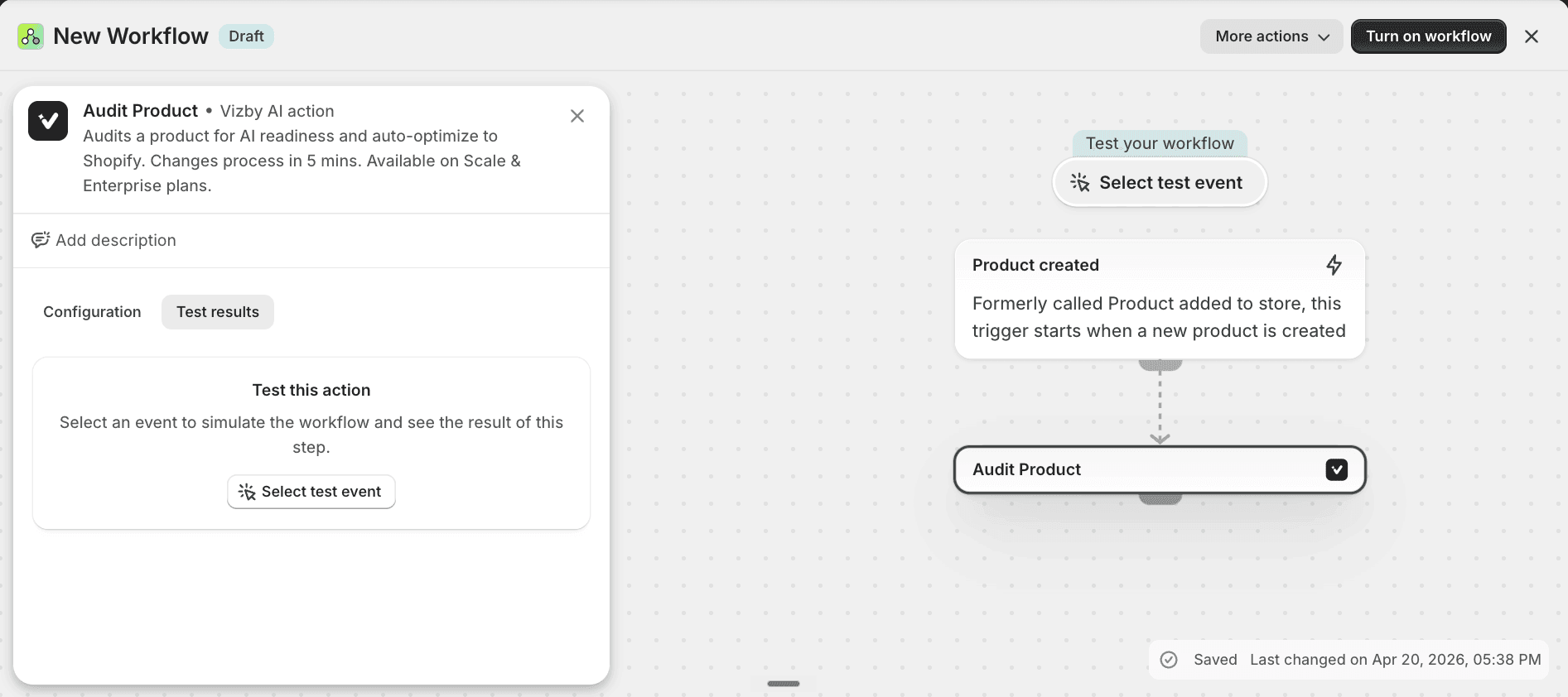
Instead of auditing products manually, you can use this flow by Vizby.ai to make sure every product in your catalog is optimized for AI discoverability the moment it's added or updated:
The AI Catalog Auto-Optimizer:
"When a product is created or its status is updated, trigger a Vizby.ai product audit to analyze and optimize its full catalog data including titles, HTML descriptions, SEO metadata, tags, and image alt texts for AI search visibility, returning deep-discovery metafield suggestions and an AI-readiness score."
Extract product benefits into metafields:
"Every day, check for the latest updated products. Read the description, use Run code to extract the benefits as described below, and ensure they're stored in the product metafield of list type custom.benefits.
Description format:
[Normal content](new line)
BENEFITS(new line)
[The benefits]
(End of description)"
Filippos Dematis at DevCommerce Agency uses this Flow to maintain all product content in one place - the description field - and let Flow extract structured pieces into metafields his theme can render anywhere. Fair warning from Filippos: these generated flows sometimes need manual corrections, so spot-check the extracted output, especially on the first runs.
Third-party API integration Shopify Flow AI prompts
When your system has no Flow connector - a 3PL, an ERP, a custom order management system - paste its API documentation directly into your prompt and let Sidekick build the handoff.
Send order data to an external API:
"On order creation, send the order data to the following API endpoint. Then get the 'order_id' from the response body and store it in a custom.external_order_id metafield.
Endpoint documentation:
POST https://example.com/api/order
Expected response:
Filippos uses this pattern to speed up integration work: copy the third-party API docs, paste them into the prompt, and Sidekick handles the mapping. Storing the external order ID back as a metafield keeps both systems linked for later lookups. Fair warning from Filippos - these generated flows sometimes need manual corrections, so review the field mapping before activating.
Building your own prompt library
You've now seen dozens of prompts across inventory, CRO, loyalty, marketing, and more. The next step is turning the ones that work for your store into a reusable system your whole team can access.
Shopify's Saved Skills feature - up to 25 reusable prompts per account, triggered with "/" and shareable via URL - turns your best one-off prompts into a permanent toolkit. Once you've tested and refined a prompt, save it as a Skill so your team can reuse it without rewriting.
Example daily skill - /morning-snapshot:
"Show me yesterday's revenue, top product, top traffic source, and any pending order issues."
Example campaign skill - /flash-sale:
"Create a 24-hour 20% off discount code for [collection], notify via email, and set up a Flow to remove the discount after expiration."
Example reporting skill - /google-traffic:
"Build a report that shows traffic from Google Shopping for the last 30 days, broken down by product."
Don't save a prompt the first time it works. Run it three or four times, tweak the wording each round, and save the version that consistently gives you the best output. A prompt that works once might just be lucky, but a prompt that works every time is a skill worth keeping.
Once you have a few solid skills, organize your library by frequency: daily check-ins, weekly reporting, campaign launches, monthly audits. Use a consistent naming convention (prefix with the frequency, for instance), so the list stays scannable as it grows.
And don't keep the library to yourself. Share it with your whole team, especially new colleagues. A shared skill library means someone joining your team tomorrow can run the same Flows your most experienced operator uses on day one.
What you can and cannot do with AI in Shopify Flow?
About 42% of Shopify merchants now use AI features including Sidekick and Magic. But Sidekick is an internal admin tool, which means it handles your operations, not your customer conversations. The table below is worth bookmarking - it'll save you from writing prompts that hit a wall.
Sidekick can do this | Sidekick can't do this |
Build Flow automations from natural language | Access external tools (GA4, Klaviyo, Zendesk). It only works with the |
Trigger emails and SMS through connected apps (Klaviyo, SMSBump, etc.) or Shopify’s native email solution | Can only write transactional emails directly |
Run ShopifyQL analytics queries | Handle customer-facing chat or support |
Create and manage discount codes | Edit images or generate product photos |
Generate product descriptions and content | Provide reliable tax or regulatory advice |
Build customer segments | Access data outside the Shopify admin |
Create theme sections (Dawn 11.0+) | Replace complex ERP integrations |
Generate custom apps (Grow/Advanced/Plus) | Execute bulk operations without verification |
What's next
Start with one prompt from this guide. Test it. Refine it. Then save it as a Skill.
Once you've got 5-10 working Flows, you’ll begin to notice how much time you gain back to focus on the more important parts of the business. What took 30 minutes of clicking through the Flow builder now takes 30 seconds of typing.
If you've got a Flow prompt your team uses daily, we'd love to include it. This guide grows as more agencies and merchants contribute - reach out and we'll add your prompt.
Frequently asked questions
Can Shopify Flow AI replace Klaviyo automations?
Flow can trigger emails and SMS through connected apps, but for building rich email sequences with templates, A/B tests, and advanced segmentation logic, you still need Klaviyo. They work best together.
Is Shopify Flow AI available on all plans?
Yes. Flow is free on all Shopify plans including Basic. The only exception is custom app generation through Sidekick, which requires Grow, Advanced, or Plus plans as of April 2026.
How accurate are AI-generated Flow workflows?
Strong with specific prompts, unreliable with vague ones. Sidekick sometimes hallucinates tags or fields that don't exist in your store. The fix: specify your data sources explicitly in the prompt, and always test with dry-run mode before activating on live data.
What's the difference between Sidekick and Shopify Flow?
Sidekick is the AI assistant you talk to - it lives in your admin panel and understands natural language. Flow is the automation engine it builds workflows in. You can also build Flows manually through the visual drag-and-drop builder without using Sidekick at all.
How do I save and reuse my best Sidekick prompts?
Shopify's Saved Skills feature stores up to 25 reusable prompts per account. Type "/" plus your skill name to fire them instantly. They're shareable via URL, which makes team onboarding faster.
Can Sidekick build Flows that integrate with third-party apps?
Yes, if the app has Flow connectors installed. Sidekick can use any trigger, condition, or action available in your Flow setup - including those from Klaviyo, Vizby.ai, ShipStation, or any app that's built a Flow integration.
Does Sidekick work on mobile for building Flows?
Sidekick works on mobile with text chat and voice mode. However, Flow generation and editing works best on desktop, where you can review and modify the generated workflow in the visual builder.
What happens if Sidekick creates a Flow with wrong tags or fields?
Specify your data sources in the prompt - frame it as "accomplish X using Y" rather than leaving Sidekick to guess. Define the source and target source directly. Always test in dry-run mode, and check the generated workflow's conditions before activating.

" height="200.00000219726564px" id="j9Mmwfnw8" transform="translate(143.5 0)" width="479.5329973144531px"/><path d="M 0 15.944 C 0 7.139 7.154 0 15.98 0 C 24.804 0 31.959 7.138 31.959 15.943 L 31.959 59.637 C 31.959 68.442 39.113 75.58 47.938 75.58 C 56.763 75.58 63.917 68.442 63.917 59.637 L 63.917 15.944 C 63.917 7.139 71.071 0.001 79.897 0.001 C 88.721 0.001 95.875 7.139 95.875 15.944 L 95.875 56.095 C 95.875 82.51 74.413 103.923 47.938 103.923 C 21.462 103.923 0 82.51 0 56.095 Z" fill="rgb(59, 63, 91)" height="103.923px" id="KJCDMITFE" transform="translate(0 53)" width="95.875px"/><path d="M 0 15.943 C 0 7.138 7.154 0 15.979 0 C 24.804 0 31.958 7.138 31.958 15.943 C 31.958 24.748 24.804 31.886 15.979 31.886 C 7.154 31.886 0 24.748 0 15.943 Z" fill="rgb(252, 200, 0)" height="31.885999999999996px" id="q2K9EYOvZ" transform="translate(0 53)" width="31.95799999999963px"/><path d="M 0 15.943 C 0 7.138 7.154 0 15.979 0 C 24.804 0 31.958 7.138 31.958 15.943 C 31.958 24.748 24.804 31.886 15.979 31.886 C 7.154 31.886 0 24.748 0 15.943 Z" fill="rgb(63, 184, 126)" height="31.885999999999996px" id="bBya7XCj7" transform="translate(64 53)" width="31.95799999999963px"/><path d="M 0 14.171 C 0 6.344 6.359 0 14.204 0 C 22.048 0 28.407 6.344 28.407 14.171 C 28.407 21.997 22.048 28.342 14.204 28.342 C 6.359 28.342 0 21.997 0 14.171 Z" fill="rgb(229, 0, 106)" height="28.341999999999985px" id="WNzwBFOi7" transform="translate(34.5 128.5)" width="28.407000000000153px"/></g></svg>)