Key takeaways:
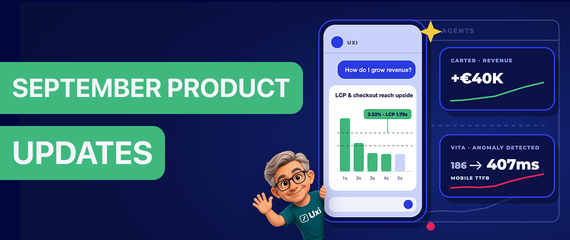
- Get answers and fixes in one chat. Uxi now gives you a ready-made fix prompt for your LLM or coding tool, reads screenshots, answers with interactive charts and opens the support chat when you need a person.
- Keep more of your carts. Carter asks leaving shoppers if they're sure, with no discount, and about 1 in 6 stay to check out.
- Catch slowdowns early. Vita spots Core Web Vitals regressions against your own baseline and suggests a fix.
- Track the forms that matter to you. Pick the forms you want to watch and get a separate abandonment rate for each, not one total for the whole site.
- See what shoppers struggle to click. A new widget breaks down rage clicks, dead clicks, error clicks and misclicks by element and highlights each one on the page.
Make Uxify one of your go-to sources on Google
 Add Uxify on Google
September is when most stores are gearing up for Black Friday. This month’s updates help you go into peak season knowing where your store loses shoppers, why it happens and what to do about it, with less digging on your side.
You can now get more done in one chat with Uxi: Get easy-to-read graphs, fixes you can hand to your coding tool, or reach a person from the Uxify team when you need one. Two AI agents, Carter and Vita, now work on your store around the clock, keeping shoppers who are about to leave and watching your site speed. And you get a clearer view of where shoppers get stuck and how much revenue it costs you.
Updates at a glance:
- Uxi: get even better answers and fixes without leaving the chat
- Agents: keep more carts and catch slowdowns early
- Uxi in Funnels: understand where you lose revenue at each step, and why
- Reality: see how users engage and where they get frustrated
Uxi: get answers and fixes without leaving the chat
Uxi is the AI inside Uxify that knows your store data and ties all the agents together. This month’s updates make it more useful in your daily work. Uxi now reads your screenshots, answers with interactive charts, opens a support chat when you need a person, and connects better with the rest of your AI tools.
Go from problem to fix in one step
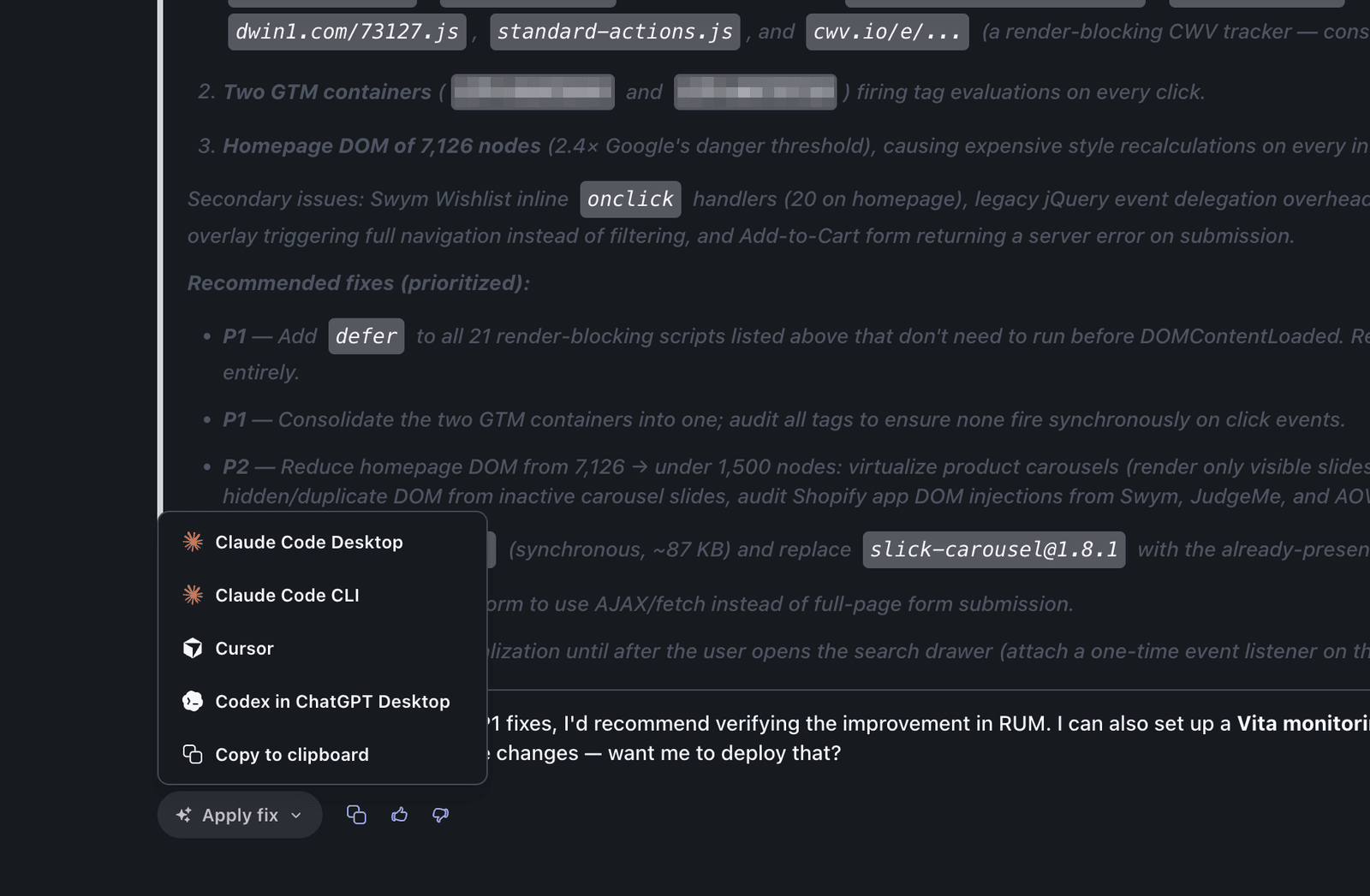
When you ask Uxi about your performance and it finds a problem, it no longer stops at the diagnosis. It also gives you a ready-made prompt you can paste into your LLM or AI coding tool (Claude, ChatGPT, Cursor or whatever you or your developer use) so it can go and fix the issue in your code.
The prompt already carries the context: what’s wrong, where it happens and what a good result looks like. You or your developer don’t have to translate a report into instructions first.
Reach a person without switching tools
When you need help from a person, you no longer have to leave Uxi and open a separate chat. Tell Uxi you need help, or that you’d like to ask a human, and it opens a chat with the support team for you. Your conversation comes along, so you don’t have to explain the problem twice.
Ask about what you’re looking at
You can now share images with Uxi. A screenshot is often the quickest way to show what you mean: something on your site that looks off, a number you want more context on, or a finding from another tool you’d like to compare with your own data. Drop the screenshot in the chat, and Uxi reads it together with your store data to answer in context.
Explore your numbers in Uxify or in your own LLM
Uxi’s answers now come as charts and widgets you can interact with, not just static images. Hover over a bar to see the exact value, how it’s made up and the totals behind it.
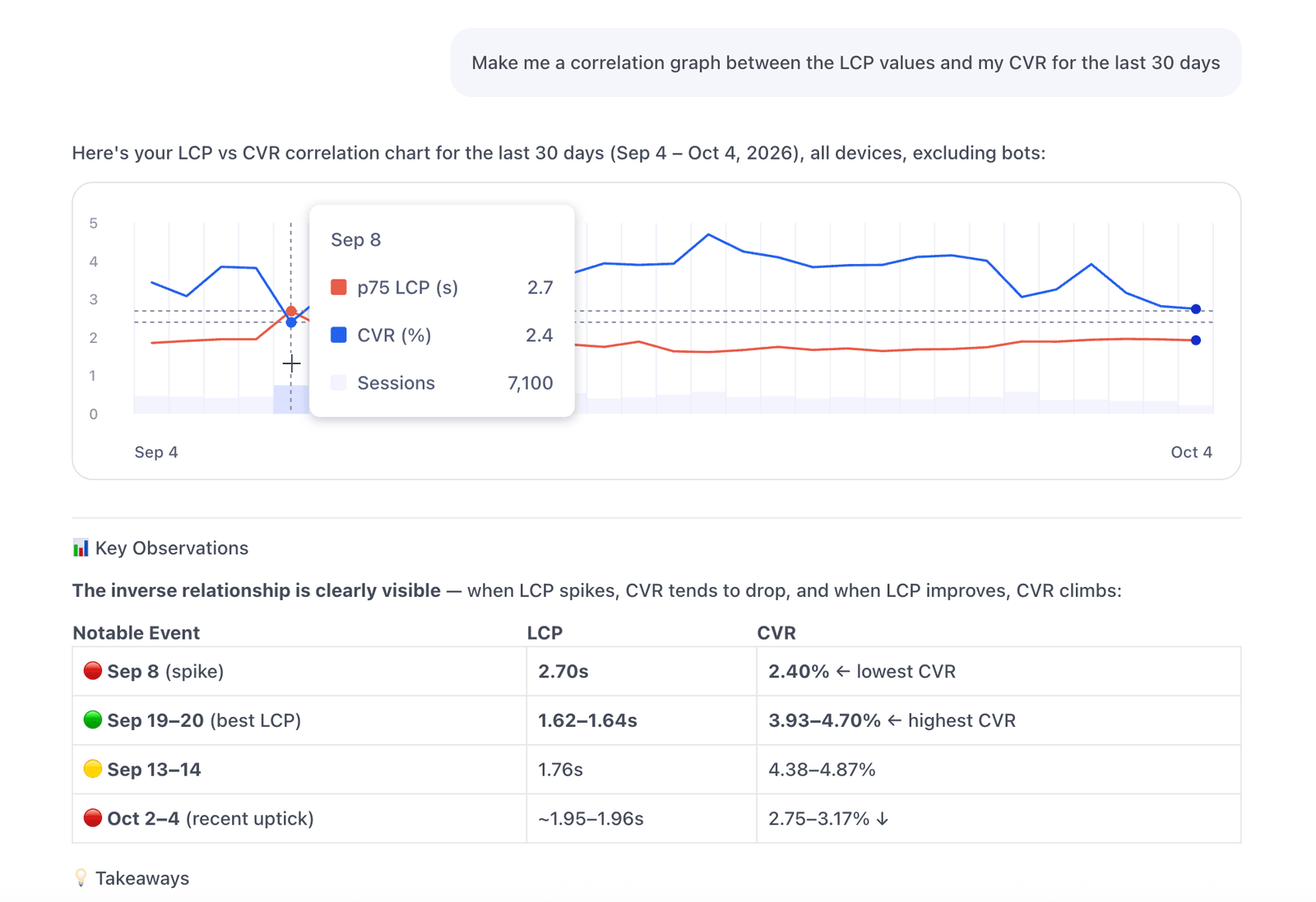
If you prefer to work in Claude, ChatGPT or another LLM, you get the same thing through the MCP. Pull your Uxify data from there and the charts stay interactive in that tool too.
PRO tip: ask Uxi for a breakdown you’d normally build in a spreadsheet, like conversion rate by LCP bucket or by device, then hover over the outliers instead of exporting the data.
Agents: keep more carts and catch slowdowns early
Keep shoppers who were about to leave
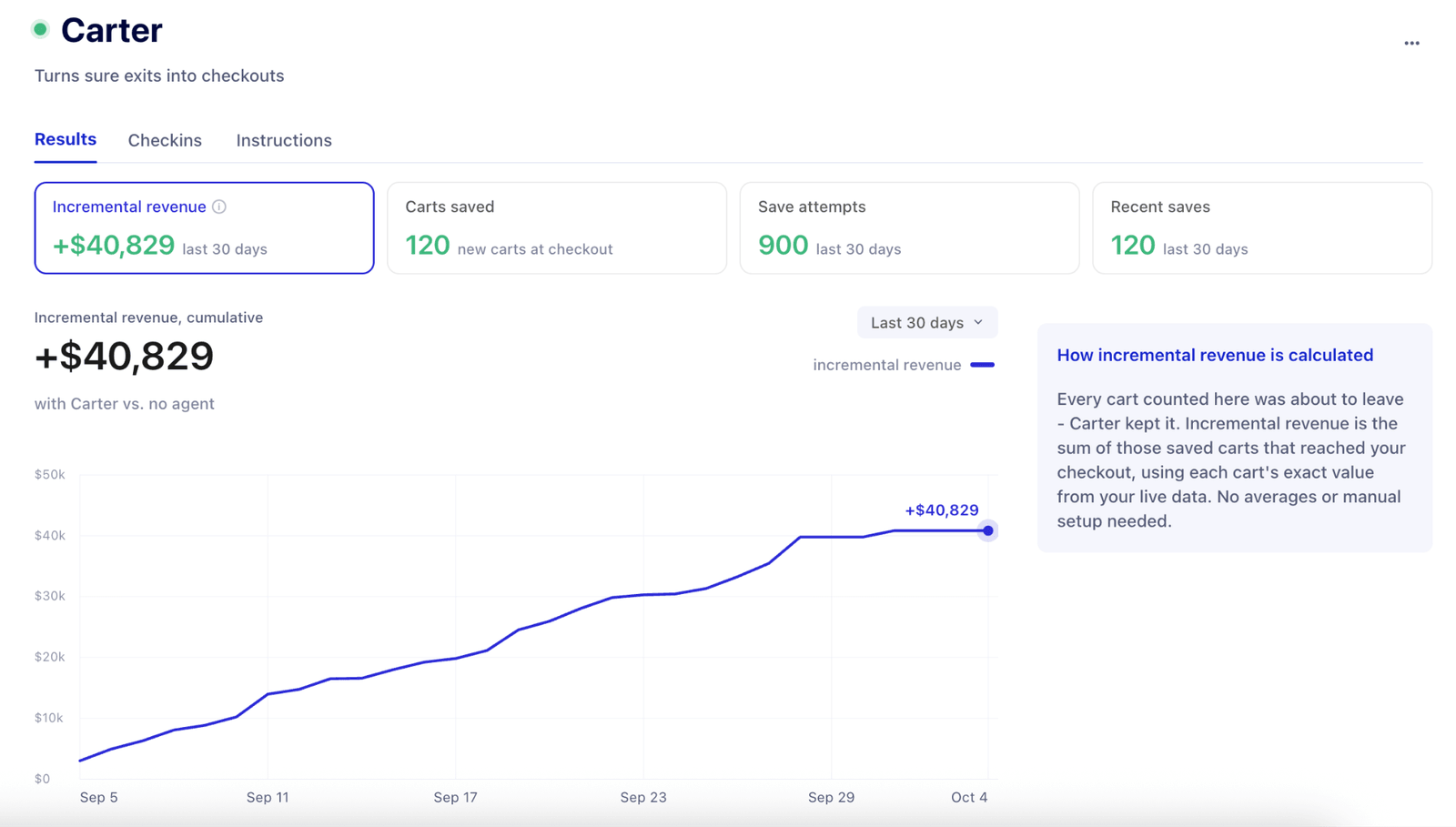
Carter saves carts before shoppers leave your site. Most cart recovery happens after the shopper is gone: abandoned-cart emails, SMS, retargeting ads. Those need you to already have the shopper’s email or phone number, and they often need a discount to work.
Carter works earlier, at the moment the shopper is about to leave. When someone with items in their cart tries to close your site, Carter triggers the browser’s own native prompt asking them to reconsider. It’s not a popup layered over your page. It’s the browser itself asking, so it gets more attention and adds no weight to your site.
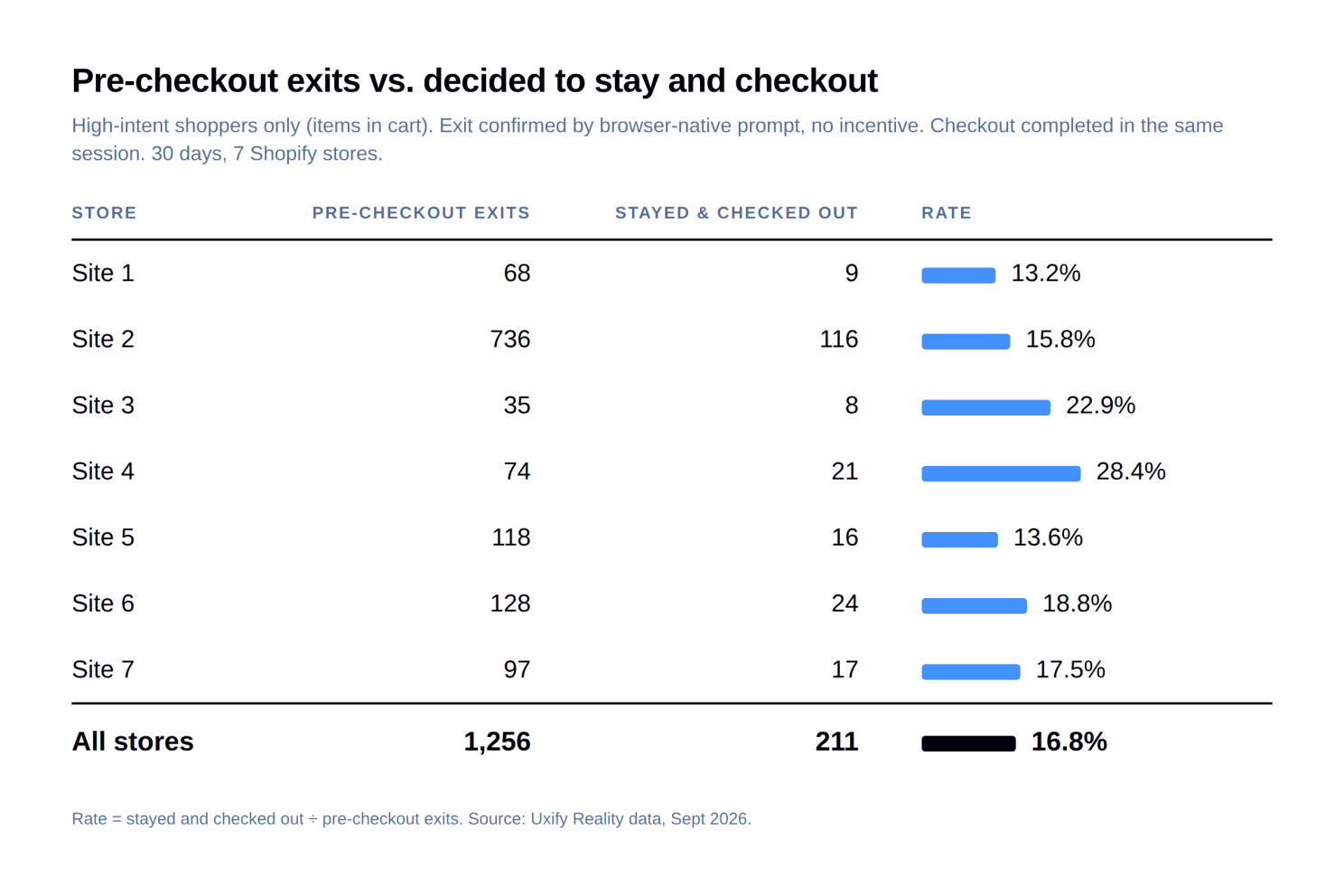
That one question is enough to keep about 1 in 6 of them. In a 30-day study across 7 Shopify stores, 1,256 shoppers tried to leave with items in their cart, and 211 of them (16.8%) stayed and went to checkout in the same visit. The message offered nothing extra, only the question of whether they were sure. Your analytics would have counted every one of them as an abandoned cart.
You also keep your margin. Carter doesn’t offer a discount or a countdown, so the sale goes through at full price, and you pay only when a cart is saved.
PRO tip: keep your abandoned-cart emails and SMS running. Carter catches shoppers before they leave, and your follow-ups pick up the ones who still go, so together they cover the moments shoppers quit. Read the replies to those follow-ups too, because they often point to friction you can test on the site.
Hear about slowdowns the day they happen
Vita is the agent that watches your Core Web Vitals for you. You don’t have to set thresholds or alerts. Vita learns what normal looks like for your store, keeps an eye out for anything unusual, and lets you know when your numbers fall below your typical benchmark. Each alert tells you what changed, the likely cause and a suggested fix, so you know what to do next.
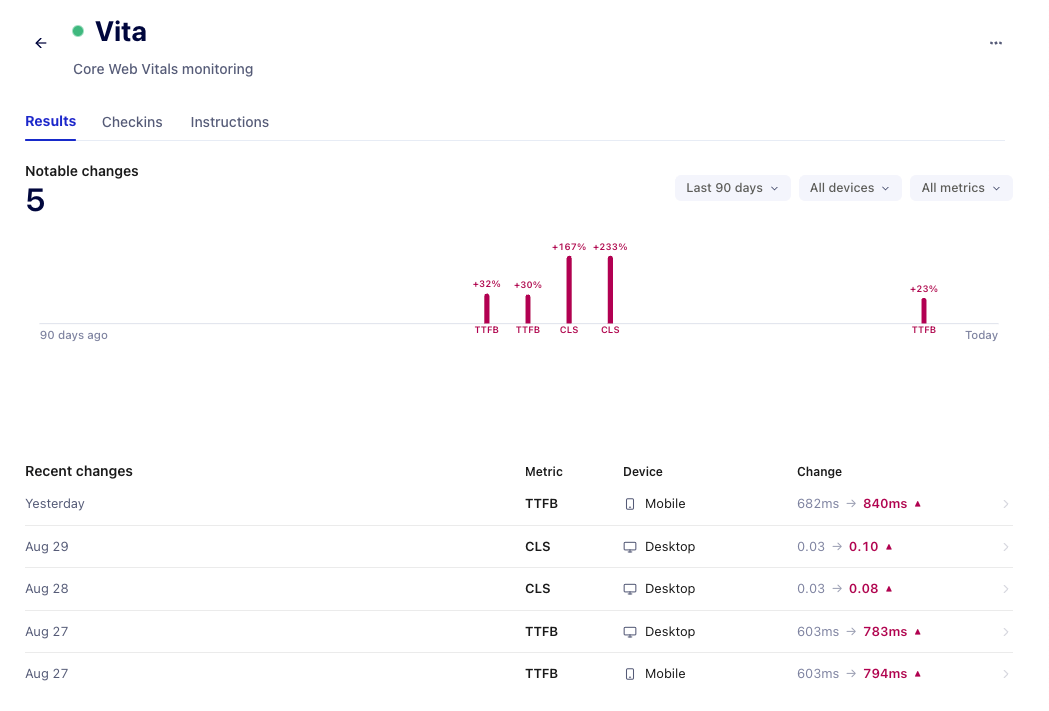
Think of it as the person on your team whose job is to monitor your vitals and explain what changed. Every run follows the same steps:
- Pull data. LCP, INP, CLS and TTFB from Reality for the last 7 days, compared with the previous 30, split by mobile and desktop.
- Detect changes. Flag meaningful moves in either direction and skip anything it already reported.
- Isolate segments. Break each regression down by page, browser and country to find who is affected.
- Explain impact. Write a short analysis of what changed, who it hits and the likely cause, with a suggested fix for each issue.
- Notify. Email you a summary of what changed and what to look into, and stay quiet when nothing is new.
During BFCM, traffic jumps and much of it comes from paid channels, so you’re paying for every visitor who lands on a slow page. That’s when spotting a slowdown the same day matters most. Busy traffic also makes your vitals swing more from day to day, and Vita sorts the real regressions from the noise for you. It flags a change as soon as it happens, so you can act right away, and you can ask Uxi for more detail whenever you want to dig deeper.
Uxi in Funnels: understand where you lose revenue at each step, and why
Find out why revenue drops at each step
Funnels already showed you how revenue flows through your store and how much of it you lose between steps. Now Uxi is built into every step, so each loss comes with an explanation of what happened, and you can ask Uxi follow-up questions or check the numbers yourself in Reality. If you’re new to funnels, the August updates walk you through setting them up.
Go to Funnels, open the revenue flow, and click on the amount lost at any step. A panel opens with Uxi’s analysis of what happened there: how big the loss is, where the people who left went instead, whether any friction showed up, and which kinds of shoppers are over-represented among those who dropped.
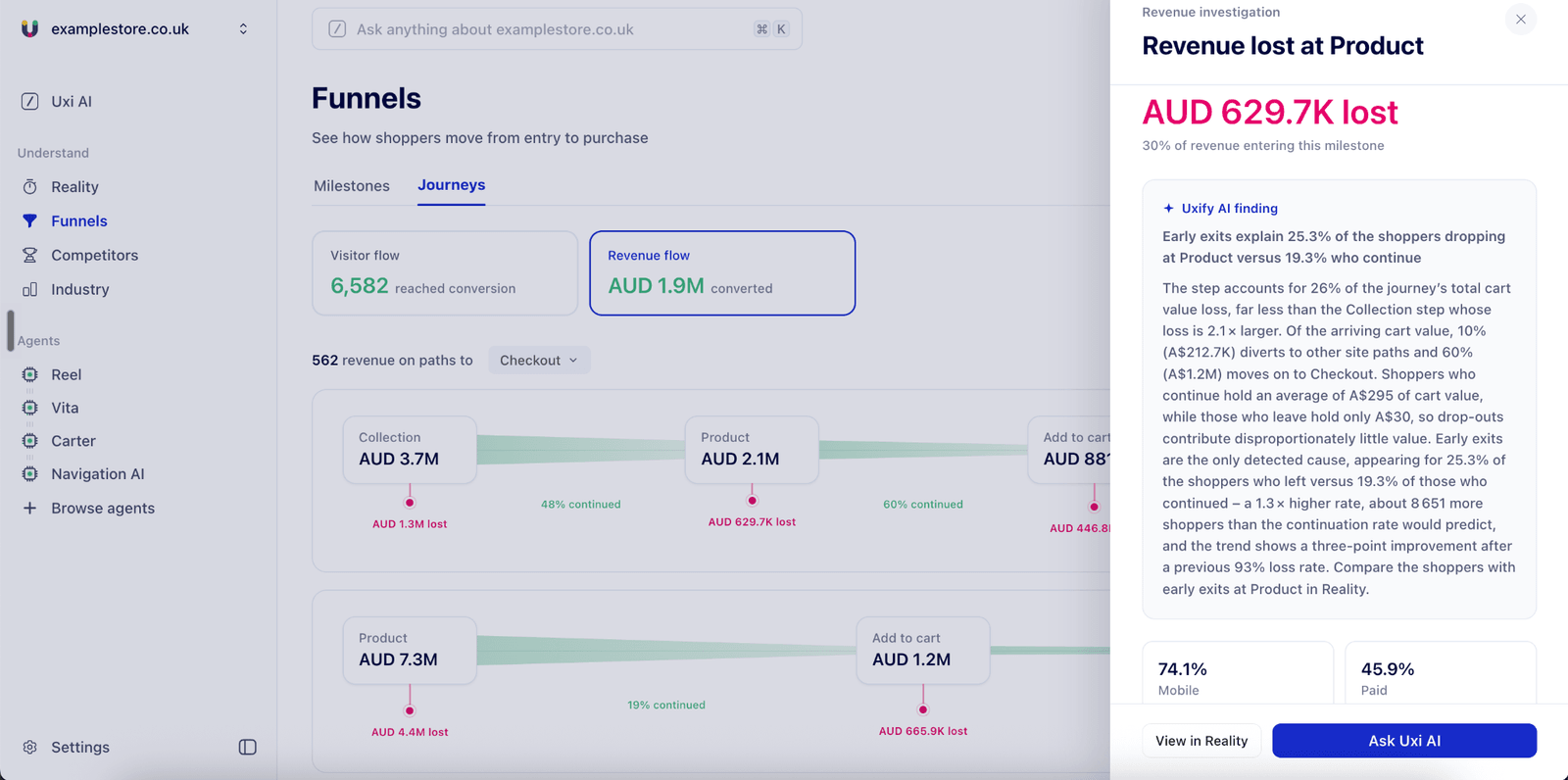
From there you have two options. View in Reality opens the exact segment of shoppers who dropped in Reality, so you can look at their sessions. Ask Uxi AI lets you keep the conversation going with Uxi and ask follow-up questions about that step.
Reality: see how users engage and where they get frustrated
Reality now gives you a closer look at two places where shoppers often give up: your forms, and the elements on your pages they struggle to click.
Track the forms that matter to you
A newsletter signup, a checkout form and a contact form do very different jobs, and a good abandonment rate for one is a bad rate for another. Until now, you got one total for all your forms added together, so that combined number could hide the form that needs your attention. Now you choose which forms on your site to track. Each form you pick becomes its own metric with its own abandonment rate, and whenever you want to watch another form, you simply add it as a new metric.
See exactly what shoppers struggle to click
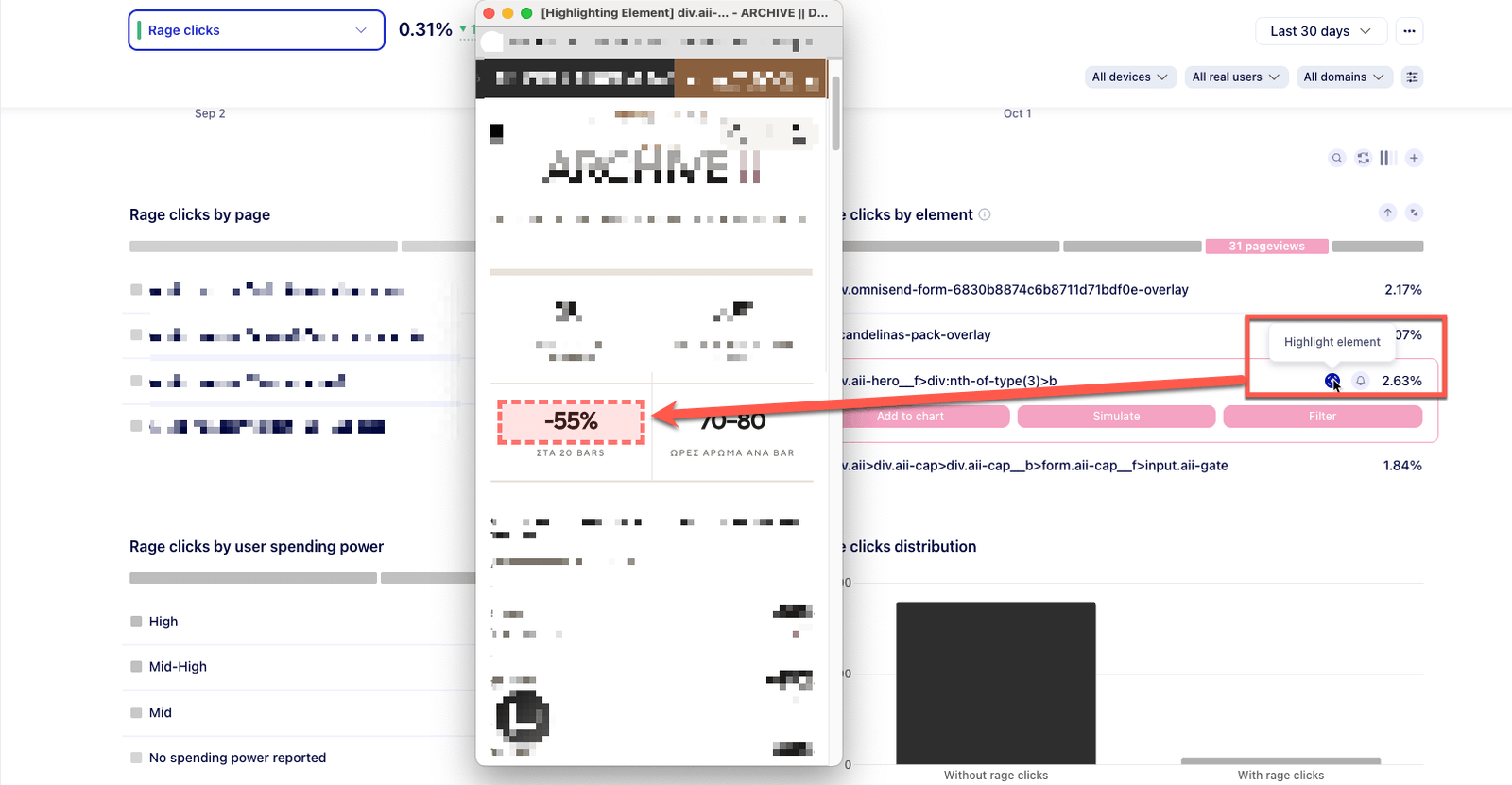
A new widget shows you where shoppers get frustrated on your pages. It covers four kinds of frustrated clicks, the behavioral signals that most often come before someone gives up:
- Rage clicks: clicking the same spot over and over.
- Dead clicks: clicking something that doesn’t respond.
- Error clicks: clicks followed by an error.
- Misclicks: clicks that miss what the shopper was aiming for.
Each one is now broken down by element. Pick an element from the list and Uxify highlights it on the live page, so you see exactly where people are struggling instead of reading a CSS selector.
Where to start
- Turn on Carter before Black Friday. It saves carts from the first day, needs no setup on your theme, and you pay only for carts it saves. If you’re still getting your store ready, the BFCM theme performance checklist covers the numbers to check first.
- Open Funnels and click on your biggest loss. Read the AI finding, then use View in Reality or Ask Uxi AI to dig into it.
- Check the frustrated-clicks widget. Look for elements that get clicked but don’t do anything, and fix the top one.
- Let Vita watch your vitals. Campaign traffic in November is exactly when regressions appear, and you want to hear about them the same day.
In short
Uxify now does more of the legwork for you. You can ask Uxi a question, explore the answer, hand off the fix and reach a person, all in one place. Carter keeps shoppers who were about to leave without cutting your margin, and Vita tells you the day your site slows down. Funnels, forms and frustrated clicks now show you not only where shoppers get stuck but also why.